LESSON 01 / 16 · 4 STEPS · 45–60 min with practice
Your first website
Build a page for Anna, a fictional photographer. Open it and improve one thing.
- Why it matters for your business
- A first working page shows what Claude can do — and gives your business something real to react to instead of an idea in your head.
- By the end
- The change is visible and the main button still works.
STEP 01
Open a project in Claude
- Open the desktop app, sign in and select Claude. If it is not installed, use the official guide below.
- Create an empty anna-first-site folder and select it as the project. Ask Claude to confirm which folder it is using.
Expected result: Claude names your empty project folder.
Show me where to click
Claude / SCREEN GUIDE
Find your project and return to its task
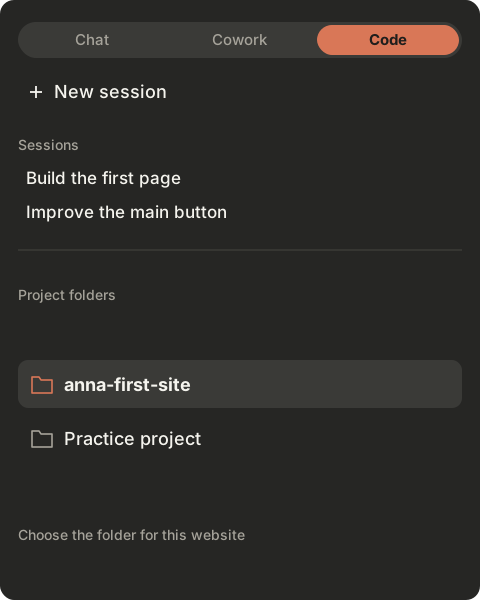
Project folders
Choose the local folder containing your website. Session titles above this area are not folders.
STEP 02
Send the build request
- Copy the request below into the same task. Let Claude finish and read any setup instructions it gives you.
Read the request
In this empty project folder, build a responsive Next.js website for Anna, a fictional family photographer. Include an opening section, services, three stages of a session and contacts. Use a dark graphite background, warm light text and a copper accent. The “Discuss a session” button must scroll to the contact section. Label sample content; do not invent reviews or contact details. Keep it local, with no accounts or payments. Explain any missing setup simply, then start the preview and give me its exact address. Preserve any existing files if the folder is not empty.
Expected result: You receive a working preview address or a specific setup step to complete.
Show me where to click
Claude / SCREEN GUIDE
Find the box where you give Claude its job
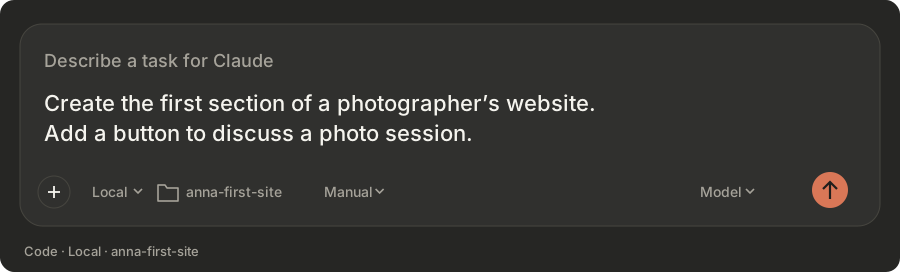
Write or paste your request
Click the message area and paste your own brief. This example asks for a photographer’s website.
STEP 03
Open and try the page
- Open the exact address Claude provided. Scroll to the bottom, click the main button and refresh.
- Make the browser window narrower. The text and buttons should fit. A localhost address only works on the computer running the project.
Expected result: The page opens after refresh and its main button reaches contacts.
Show me where to click
Claude / SCREEN GUIDE
Your request on the left. The website on the right.
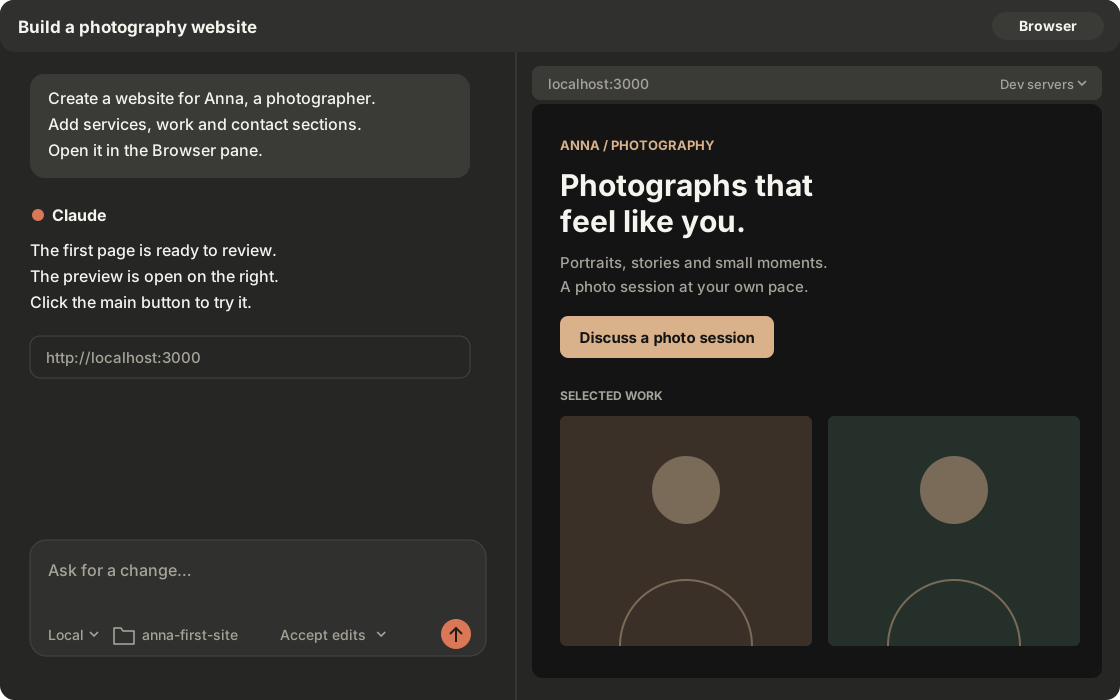
Conversation
Give Claude a request here, then read its response.
STEP 04
Make one improvement
- Ask for one specific change, such as a shorter heading. Check the updated page yourself.
- If something fails, send the page address, what you clicked, what you expected and what happened. Continue in this same project next time.
Expected result: The change is visible and the main button still works.
If you get stuck
The preview will not open
Send Claude the exact address and error. Ask it to start the preview in this project and provide a working address.
Claude explains but does not build
Check the selected project folder. Ask Claude to make the changes there, open the result and explain any missing setup.